
When to use a tunnel
A normal domain needs an address DomainDock can reach: a public IP or a hosted app. A tunnel works the other way round. A small agent runs next to your app and connects out to DomainDock, so the app can be on:
- your laptop, for a demo or to test webhooks
- a home server or Raspberry Pi behind your router
- a company network or a VM without a public IP
Visitors use https://yourname.digitalweb.host as usual. DomainDock passes each request through the agent's connection to your app.
Create a tunnel
- Open your project and click Add domain.
- Pick the address, then choose On my computer.
- Click Create tunnel. A confirmation screen shows the command that starts the agent, with your token in it.
Copy the command before you leave that screen. The token is shown once. Anyone who has it can serve your address, so keep it private.
Start the agent
The agent is [frp](https://github.com/fatedier/frp), a widely used open-source tunnel. Enter the port your app listens on and pick how to run it:
- frpc: download frpc for your system from the frp releases page (the link points at the right version), unpack it and run the command.
- Docker: copy the Docker version of the command. There are variants for Docker Desktop (macOS, Windows) and for Linux.
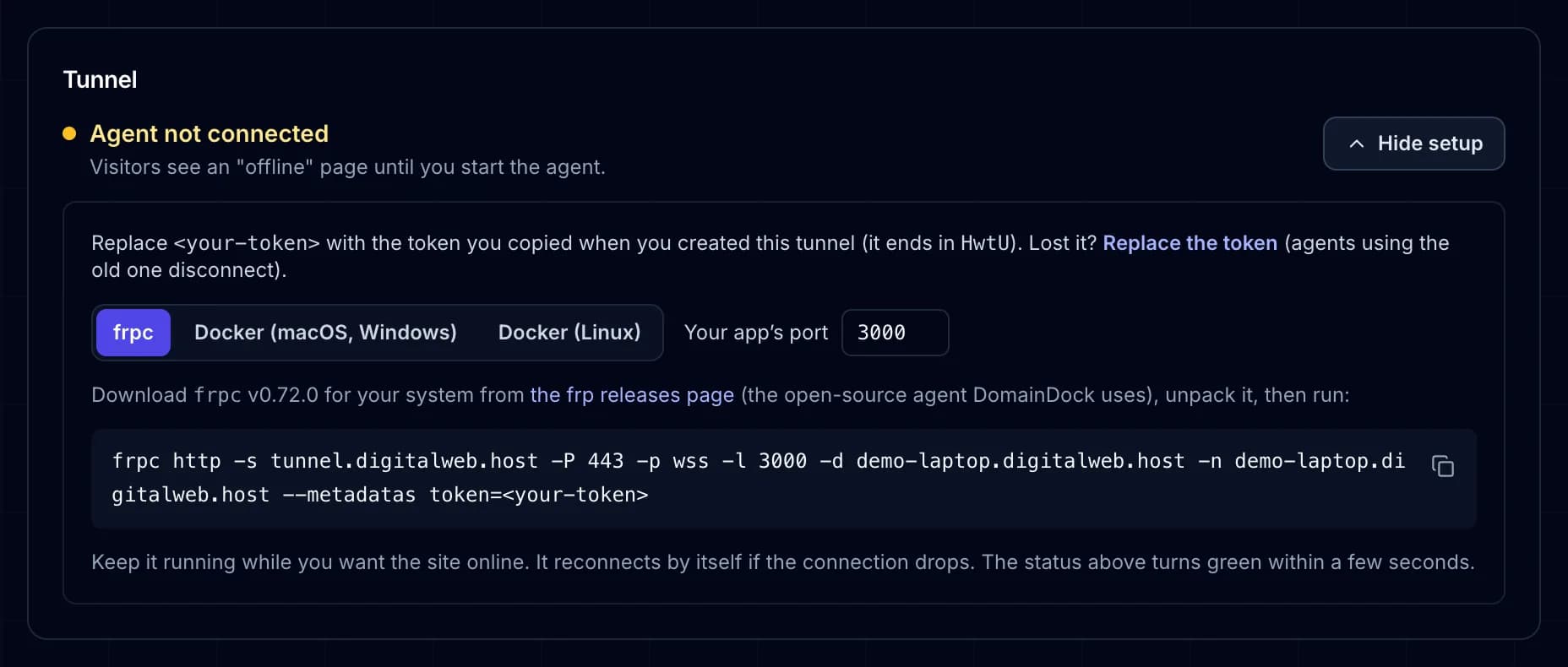
The status on the domain's Overview turns green ("Agent connected") within a few seconds. Keep the command running while you want the site online. It reconnects by itself after a network drop.
Later, open the domain's Overview and click Set up agent to see the command again. It shows a placeholder where the token goes, plus the token's last characters so you can tell which one it is.
Lost the token?
Under Set up agent, click Replace the token. DomainDock asks first: the old token stops working at once, so a running agent disconnects until you start it with the new command.
While the agent is off
Visitors see a DomainDock page saying the tunnel is offline. Start the agent again and the site is back. DomainDock doesn't send down alerts for tunnels, since closing your laptop is normal.
Good to know
- The agent only connects out, over HTTPS on port 443, so it works behind routers and most firewalls.
- Your app receives each request with your DomainDock address as the host plus
X-Forwarded-Proto: https, so apps that require HTTPS work. - WebSockets and streamed responses work through the tunnel.
- Each tunnel serves one address. For a second address, create another tunnel and run a second agent.
- You can still add paths to a tunnel domain: for example
/apion a hosted server and everything else from your computer. A backup server can stand in while your computer is off.