
You send a client the preview link on Tuesday. On Thursday they forward it to their whole team, someone pastes it in a public channel. By the following week a half-finished pricing page shows up in search results. Nobody did anything wrong. The link was simply public.
A staging site needs one thing before anything else: a lock on the door. Here are three ways to add one, in the order most of us try them.
Option 1: in your app
Most frameworks make it a few lines of middleware. In Express:
app.use((req, res, next) => {
  const expected = 'Basic ' + Buffer.from(`client:${process.env.PREVIEW_PASSWORD}`).toString('base64');
  if (req.headers.authorization === expected) return next();
  res.set('WWW-Authenticate', 'Basic realm="Preview"').status(401).send('Password required');
});
It works. It also lives in your code. That's also the problem. The check ships with every deploy, so production needs a flag to turn it off. Every new service (the API, the docs, the admin panel) needs its own copy. Forget one and that part of the preview is open.
Option 2: in front of your app, on your server
If you run nginx, it can ask for the password before the request ever reaches your app:
sudo htpasswd -c /etc/nginx/.htpasswd client
location / {
    auth_basic           "Preview";
    auth_basic_user_file /etc/nginx/.htpasswd;
    proxy_pass           http://127.0.0.1:3000;
}
This is the classic setup and it's solid: one place, covers every path, your app knows nothing about it. It needs a server you control and a reload when you change the password. It doesn't help when your preview runs on a free host where you can't touch the web server config.
Option 3: at the address
The third place is the address itself. If your preview runs behind DomainDock (on a server, a free host or a tunnel from your laptop), the password lives on the domain:
- Open the domain in the dashboard and go to Access.
- Click Add password. A strong password is suggested; you can type your own instead.
- Save, then copy the username and password from the box that appears.
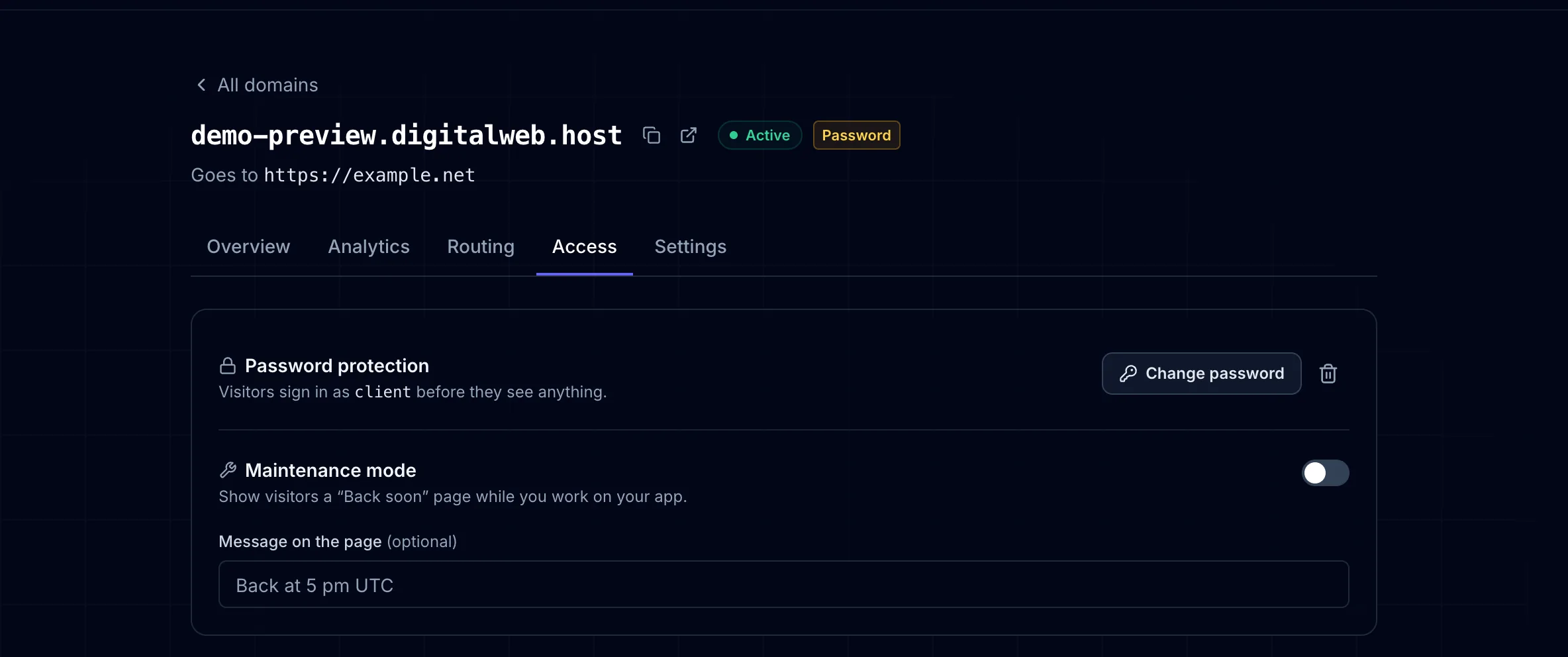 Password protection and maintenance mode sit on a domain's Access tab.
Visitors get the browser's own sign-in prompt before anything loads, on every path of the domain. Your app doesn't change and never sees the password: DomainDock removes it from the request before forwarding. It works the same whether the app is on a VPS, on Render or on your laptop.
You can also switch it on while creating the domain, so the preview is never public, not even for the first minute.
What a password doesn't protect
All three options use HTTP Basic authentication. It's a decent lock for a preview, but it's worth knowing its shape:
- It's one shared password. Everyone who has it is the same person as far as the server is concerned. You can't revoke one client's access without changing it for everybody. For per-person access you need real accounts.
- It only travels safely over HTTPS. Basic auth sends the password with every request, encoded but not encrypted. On plain HTTP anyone on the network can read it. DomainDock domains are always HTTPS, so this one is covered; check it if you set up nginx yourself.
- It blocks machines too. Webhooks, uptime monitors and link previews in chat apps can't type a password. If Stripe needs to reach
/webhooks/stripeon your preview, give that service its own unprotected address instead of punching holes in the lock. - It doesn't make a password strong.
client:client2024will be guessed. Use the generated one. DomainDock also limits how many requests one address can make per second, which slows guessing down, but a long random password is what actually stops it.
The other switch: "back soon"
Next to the password on the Access tab there's Maintenance mode. Turn it on during a migration or a risky deploy and every visitor gets a clean "Back soon" page with your message, instead of half-working pages or errors.
The page answers with status 503 and a Retry-After header. That's the combination search engines treat as temporary: Google's guidance for planned downtime is exactly this, so your pages stay in the index while you work. A 404 or a blank 200 during maintenance can do real damage if it's crawled at the wrong moment.
DomainDock asks you to confirm before maintenance mode goes on, because everyone loses the site the moment it does. Turning it off happens right away.
Which one to pick
If the preview runs on a server you manage and you already use nginx, option 2 is fine and costs nothing. If you'd rather not keep a password check in your code or your server config, or the app runs somewhere you can't configure, put it on the address. Either way, put it on before you send the first link.
The password and maintenance guide covers the details, including what happens to paths and backups while maintenance mode is on.